

Mac
For macOS

Save your first item, add something new, and find it again. Start with these three simple guides.
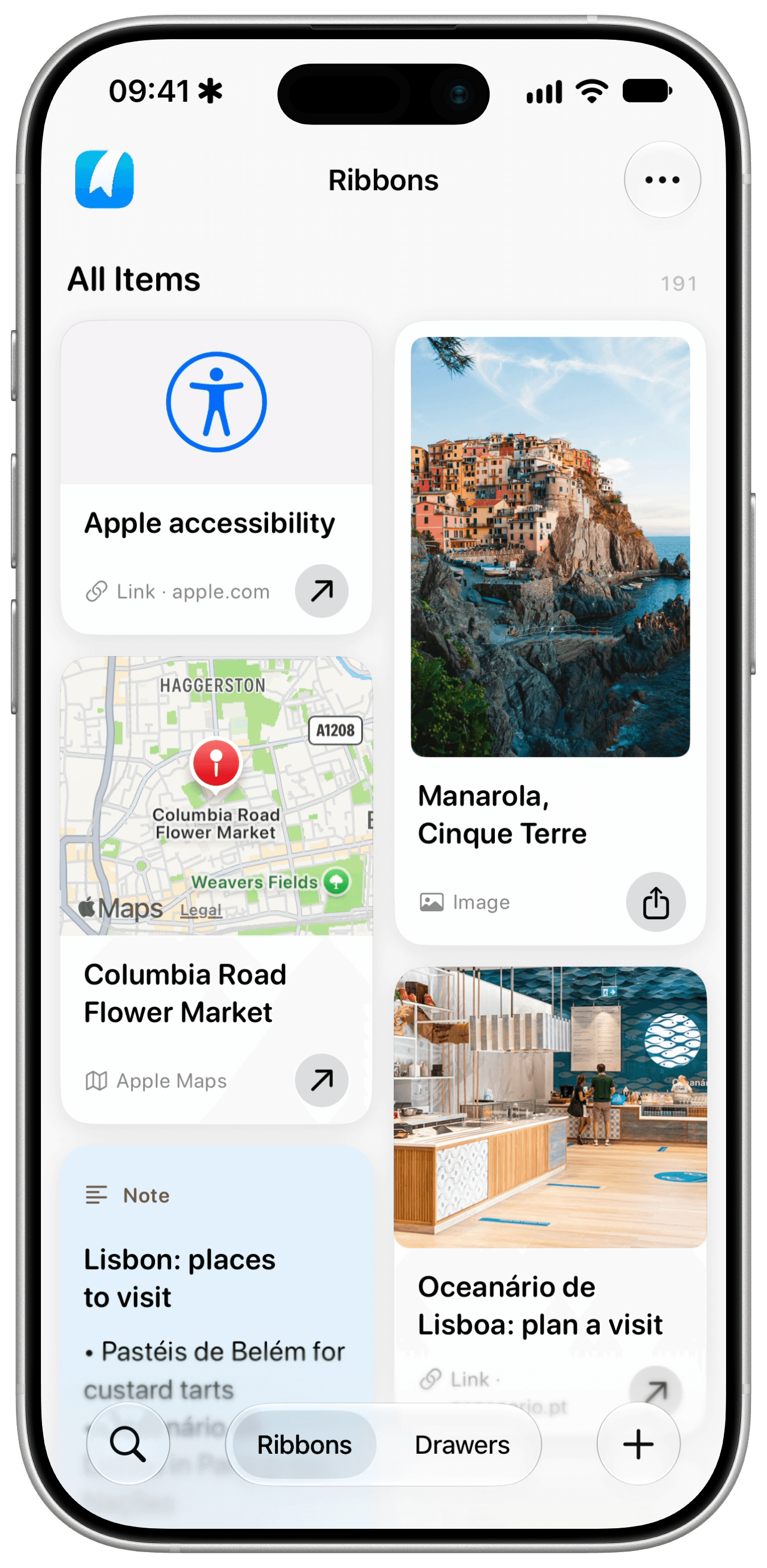
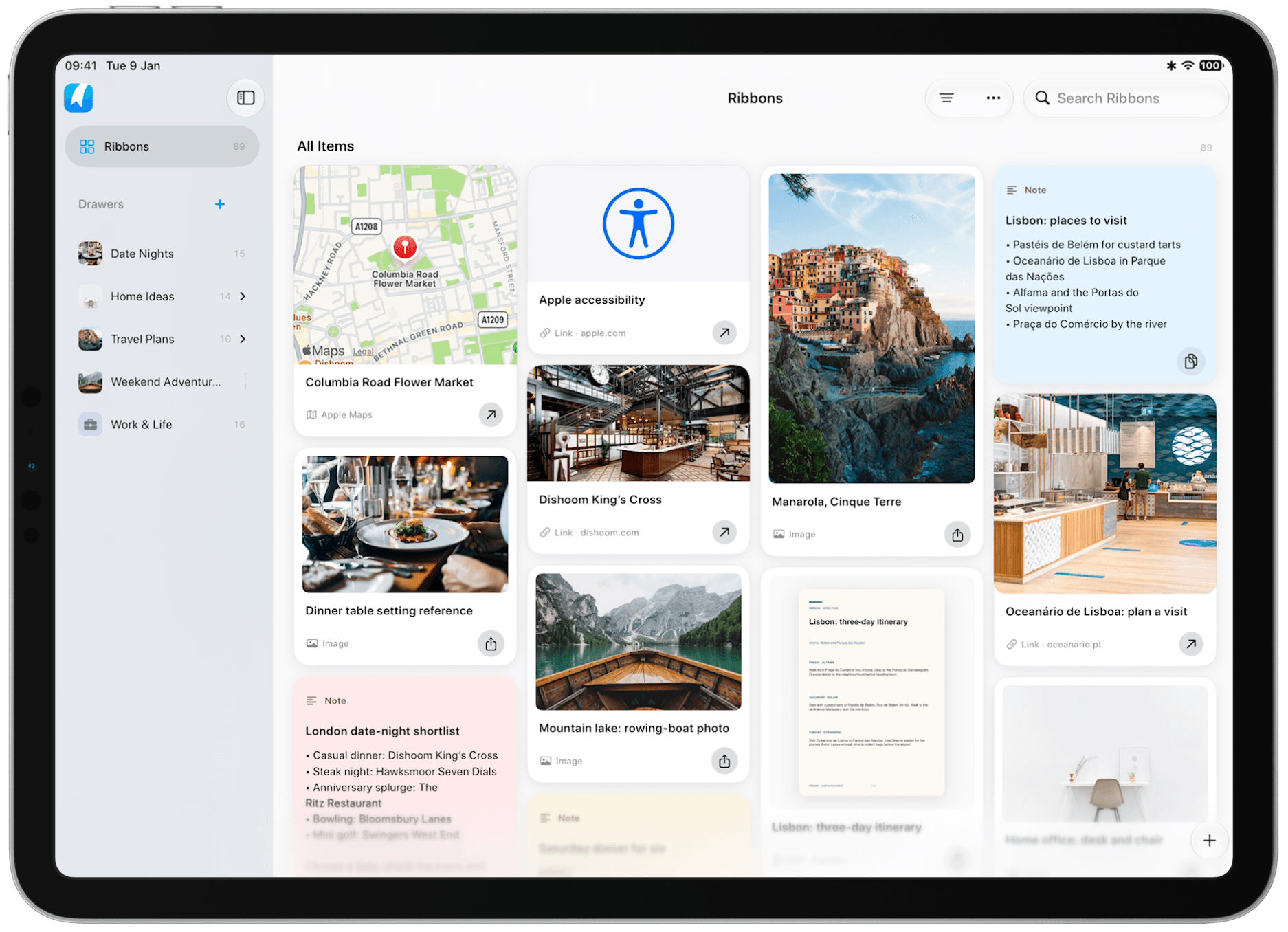
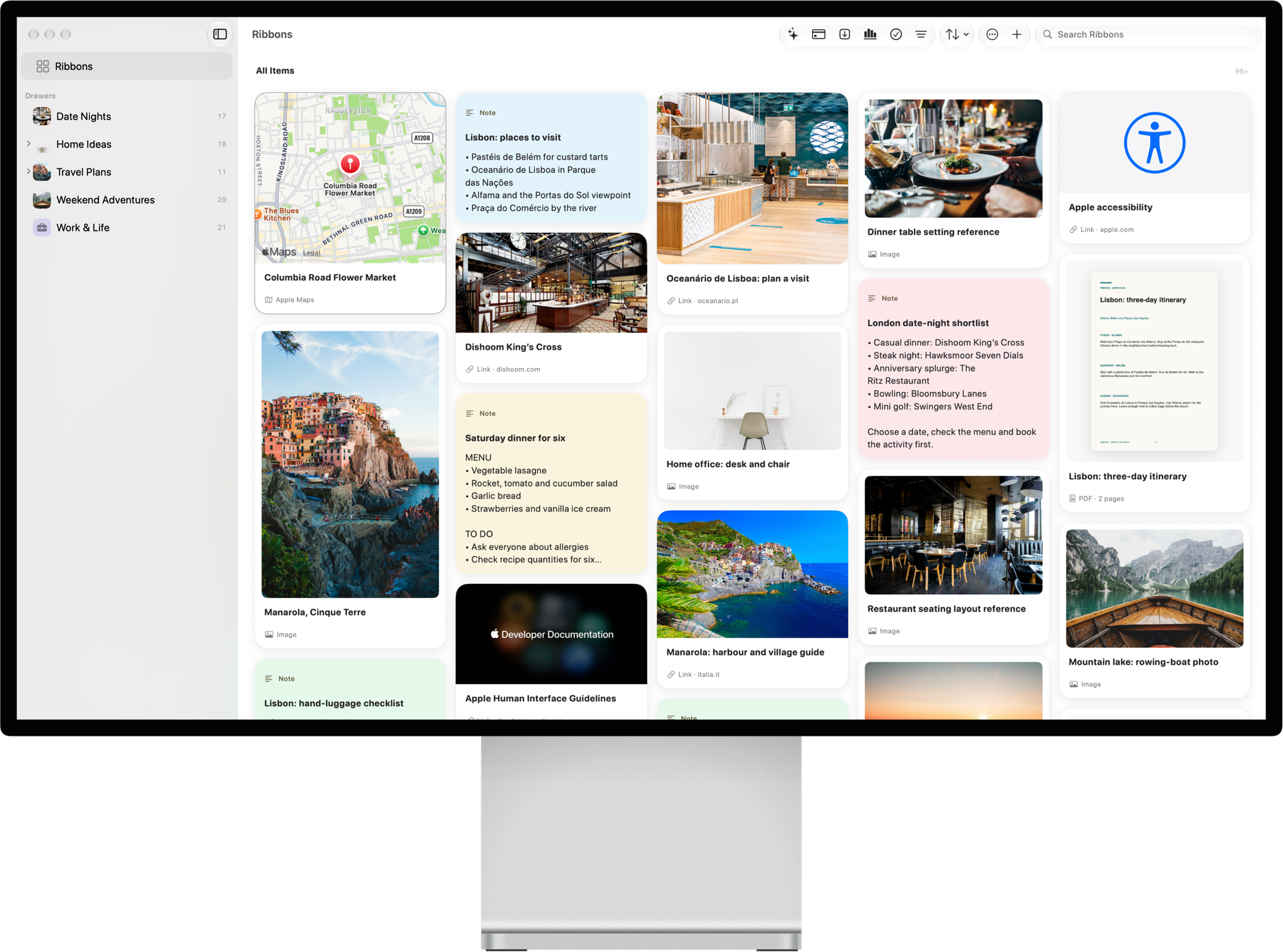
Already in the app? Use the plus button to import a file, choose photos or videos, save a link, or write a note.
Open Ribbons and tap the plus button.
To save straight into a Drawer, open that Drawer first.
Choose what you’d like to add.
Choose Files imports an image, PDF or video. Choose Photos & Videos opens your photo library. Use Add Link for a URL or New Note for text.
Pick your content or create something new.
Follow the picker to import your selection, or finish adding your link or note. You can organise it later.
Ready to use something you saved? On iPhone and iPad, pull down to open Quick Find and search for the words you remember.
Pull down from the top of the list.
On Home, in All Ribbons or inside a Drawer, pull down until the search cue signals to release. You can also tap Quick Find on Home.
Type a word or phrase.
Try a name, part of a note or words from an image or PDF. Quick Find searches across your library.
Open the result you need.
Tap an item to use it, or choose Search All Ribbons to see the full results.
Need a hand? Get in touch.
Your saved things, ready when you need them. Choose where you want to use Ribbons.
For macOS

For iPadOS


For iOS
Free to download, with in-app purchases. See the App Store for current subscription prices and offers.