Introducing Ribbons
A place for the things you want to keep close — and a way to find them when you need them.
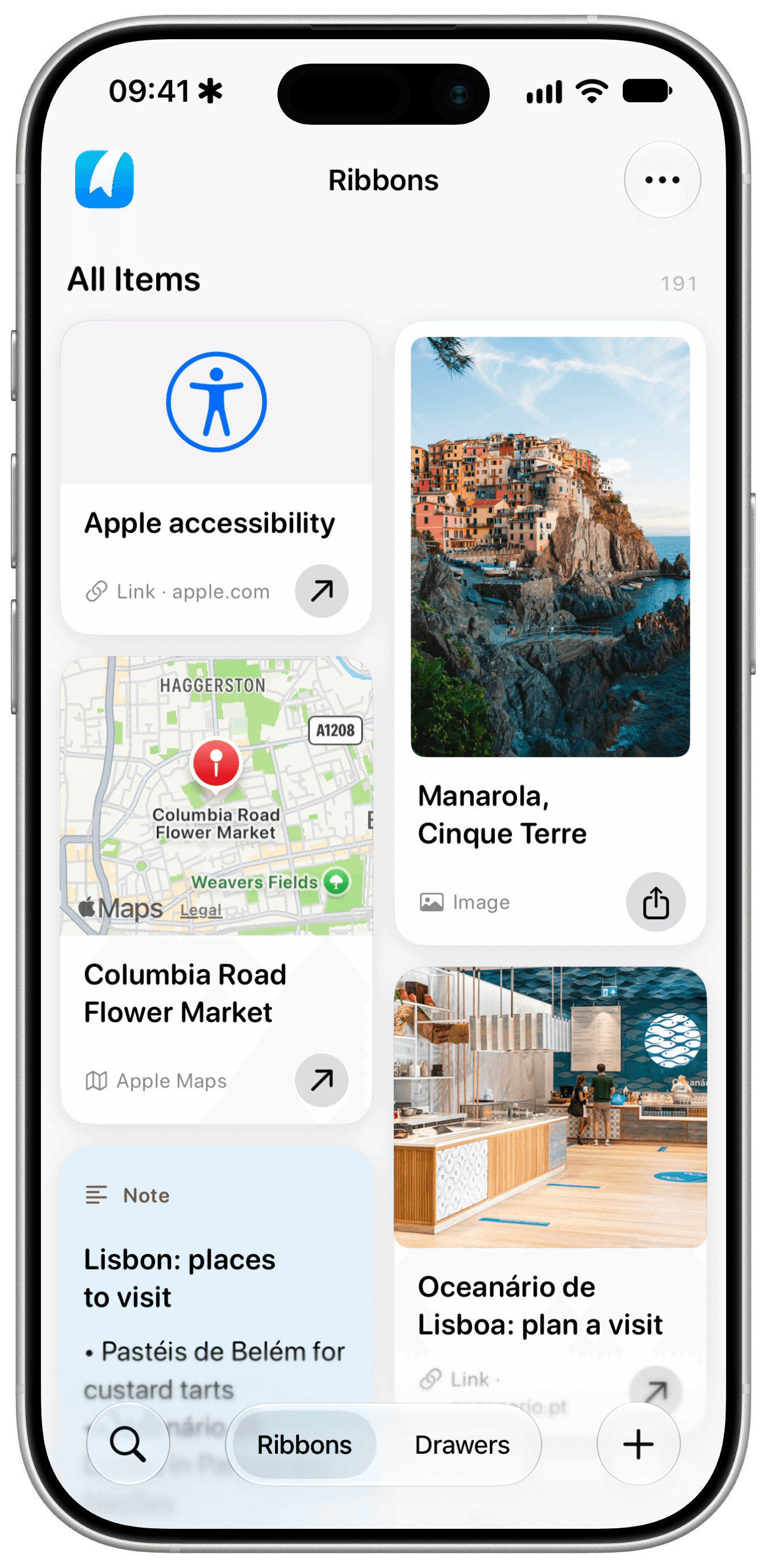
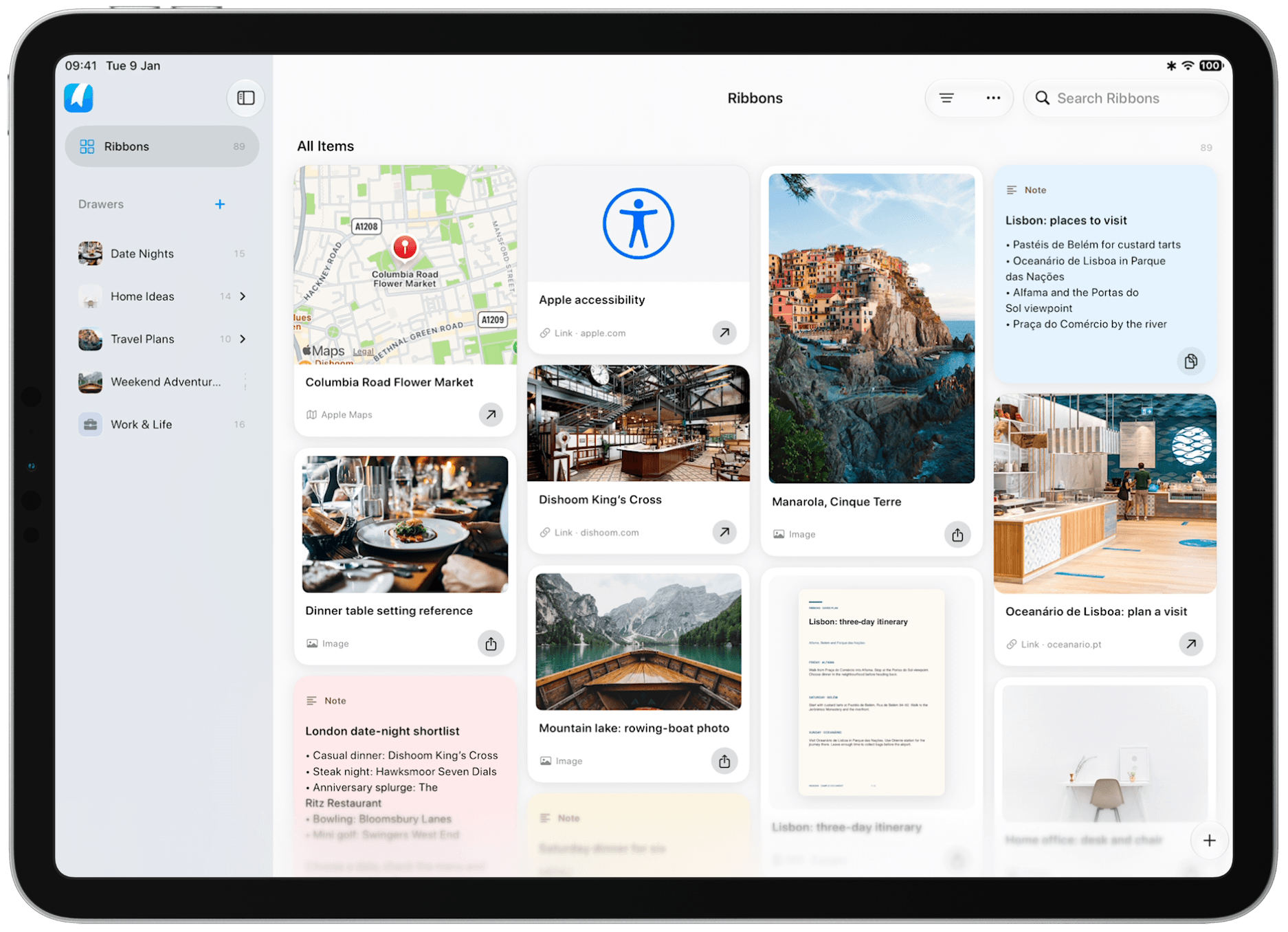
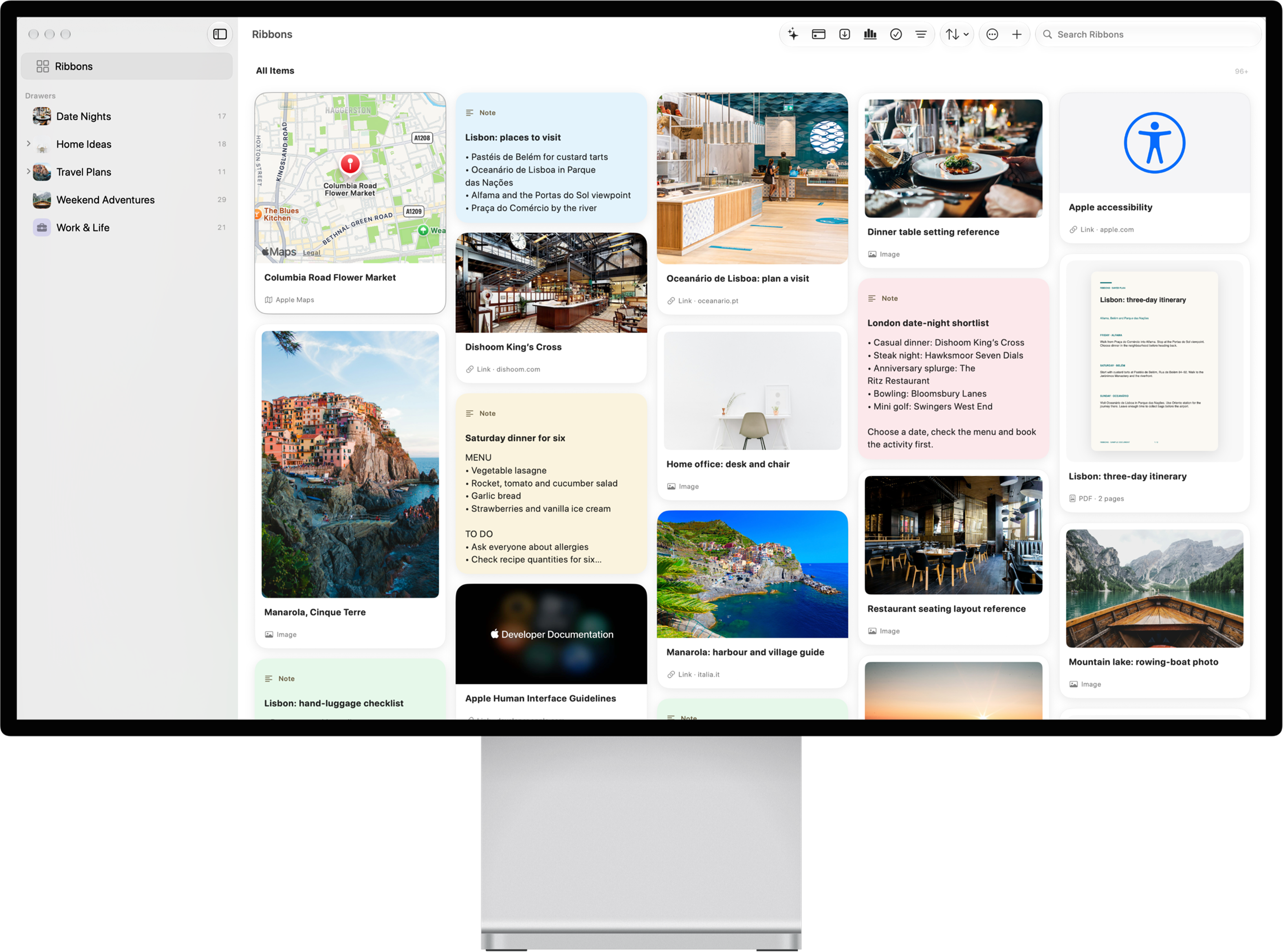
A link you meant to revisit. A photo that sparked an idea. The PDF you always need when you least expect it. Useful things have a habit of ending up in different apps, tabs, chats, and folders. Ribbons gives them one place to live.
Save what matters as you find it, then come back to it without having to remember where it came from. Ribbons brings links, images, notes, and documents together on iPhone, iPad, and Mac.
One place for all your finds
Your saved items don't all look alike, and they shouldn't have to. Keep a website next to a photo, a note next to a PDF, or a map link beside the plans it belongs to. Add something quickly; decide whether to organize it later.
For plans big and small
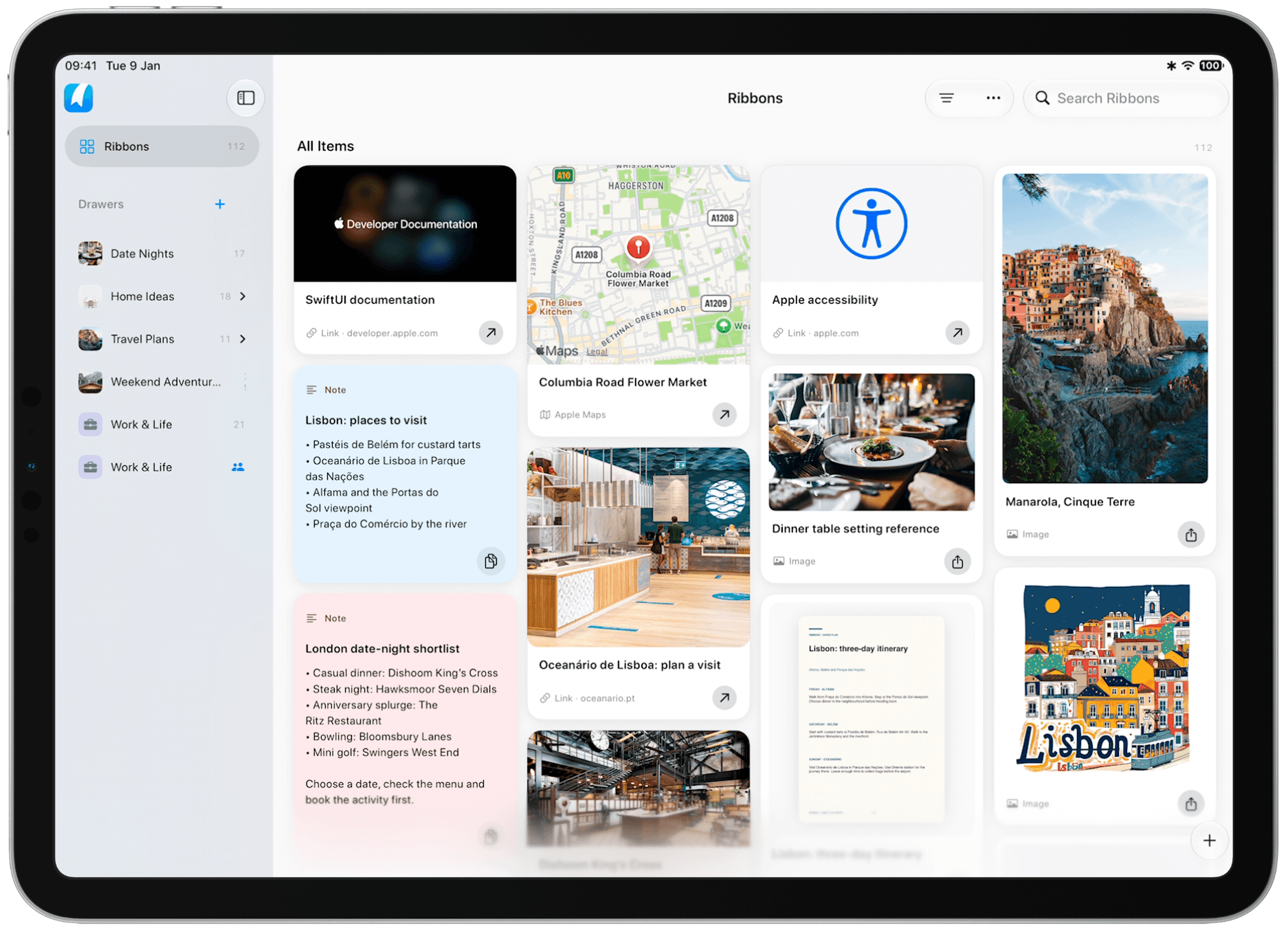
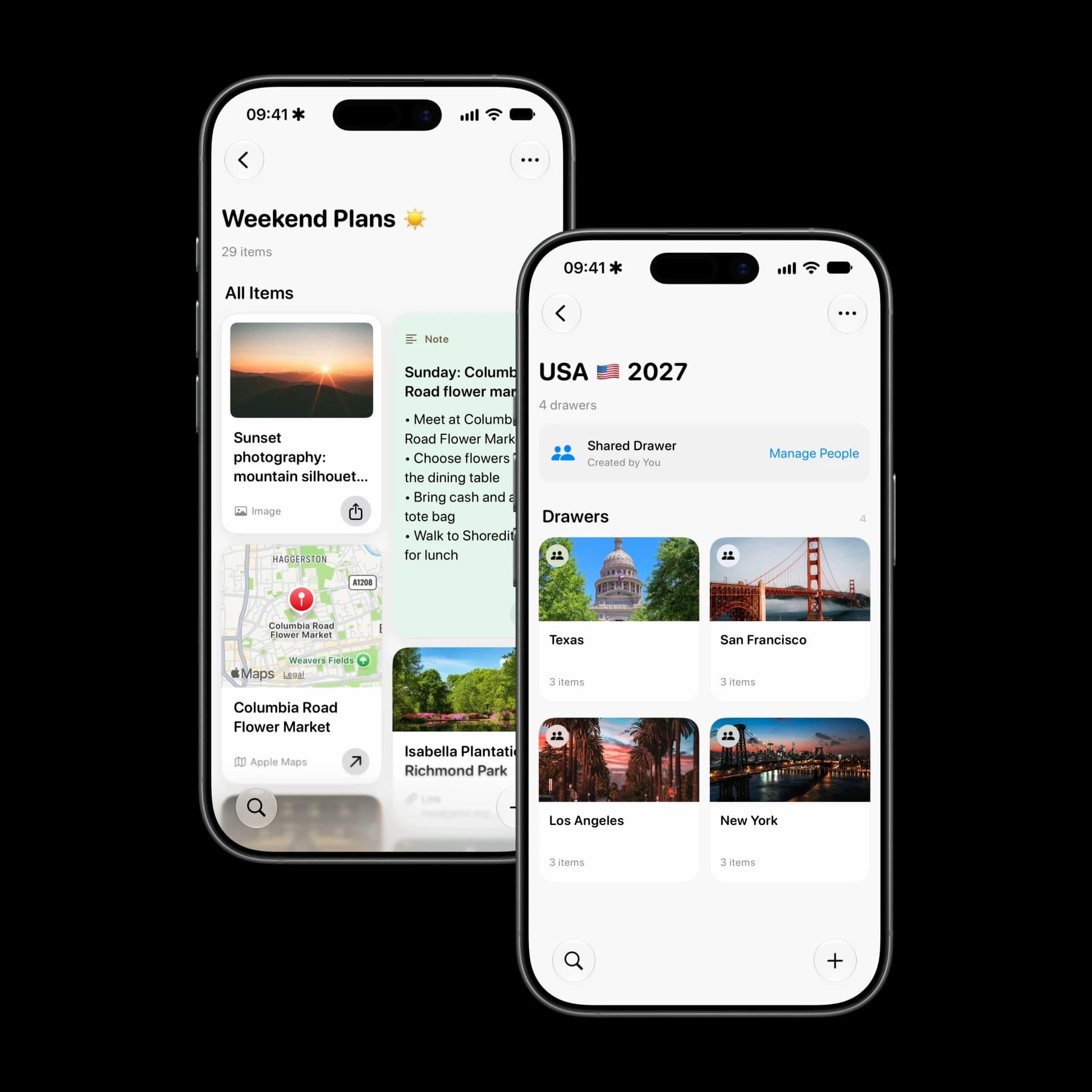
Planning a holiday together? Keep places from Apple Maps, booking PDFs, restaurant links, and a packing note in a Shared Drawer. The details stay together as plans change, and the people you invite can find them in one place.
A private Drawer can hold the paperwork you need to return to: a contract, an insurance PDF, or a scanned letter. You can also use a Drawer to plan a video, with a draft script, reference images, links to Apple Music tracks, and YouTube videos that inspired the idea.
There's no special format to learn. Save each thing as you find it, then bring related things together when a project starts to take shape.
Find it with Deep Recall
Sometimes you remember a word from a document or a detail in a screenshot, but not the title you saved it under. Deep Recall searches the text in your saved notes, images, and PDFs, so you can start with the detail you remember.
For images and scanned PDF pages, Ribbons uses optical character recognition, or OCR. It looks for visible words in the picture and makes them searchable after the item is saved. A PDF that already contains text can be searched too. The search happens in a local index on your device, and results show the words that matched. Open a result to see the relevant part of an image or page.
In the example below, searching for “IKEA” brings back saved items whose visible text includes that word, even when their titles don't. It's useful when you can picture what you saved but can't remember what you called it.
Make room with Drawers
When things belong together, put them in a Drawer. A trip might bring together tickets, places, and a packing note. A project might have references, documents, and useful links. Keep a Drawer private, or use a Shared Drawer to collect things with other people.
Find it with Siri
With Siri AI on OS 27, you can ask for the words you remember. Siri hands the search to Ribbons, where you can see the matching items and the details that made them appear. If there's one result, Ribbons can open it directly.
For a useful request, name Ribbons and include a word or short phrase you remember from the item. You can try:
- “Search Ribbons for IKEA” when that word appears in a saved image or scanned page.
- “Find Lisbon itinerary in Ribbons” when you remember a few words from a note or PDF.
- “Search for the capital gains tax document in Ribbons” when you remember the subject of a document, but not its filename.
Keep what matters close
We built Ribbons because useful things kept ending up in different places: a link in a browser tab, a photo in the library, a PDF in Files, a thought in a note. Each was easy to save. Finding it again was the hard part.
Ribbons gives those things a place to stay close. Save them without stopping to organize, make room for a plan when you need to, and come back to the detail you remember. We hope it helps you spend less time looking and more time making use of what you've found.